

Summary #
To simplify automated control via the KH Director, a dedicated Excel calculator has been developed for the EZ-DSR method. This guide explains how to use this tool to determine the precise parameters for your GHL control settings, ensuring your water chemistry remains rock-solid.
What is EZ-DSR & How does the KH Director help? #
The EZ-DSR (Dutch Synthetic Reefing) program is an easy-to-use method that allows you to maintain a reef aquarium without the need for routine water changes. This method relies primarily on four solutions: EZ-Buffer, EZ-Calcium, EZ-Trace, and EZ-Carbon.
A core rule of this method is that EZ-Buffer, Calcium, and Trace must be dosed in a strict 5:1:0.5 ratio. If a dose adjustment is needed due to fluctuating alkalinity consumption, the adjustment must be made proportionally to all three supplements.
With automated KH testing, the KH Director manages these adjustments for you. Based on the outcome of each KH test, the KH Director can automatically and proportionally adjust your existing dose amounts for all three of these supplements simultaneously.
Applies to #
- KH Director
- Compatible controller:
- ProfiLux 4 Series (incl. Industrial Line / IL) (Min. firmware 7.10)
- ProfiLux 3 Series (Min. firmware 6.32)
- GHL Doser 2 / Maxi / 2.2 Maxi Standalone (incl. Industrial Line / IL) (Min. firmware 1.27)
- GHL Doser 3 / 3 Maxi Standalone (incl. Industrial Line / IL)
- Dosing unit:
- GHL Doser 2 / Maxi / 2.2 Maxi EXT (incl. Industrial Line / IL)
- GHL Doser 3 / 3 Maxi EXT (incl. Industrial Line / IL)
- Software:
- GHL Connect (App, Webinterface, myGHL)
- GHL Control Center
Downloads & Prerequisites #
- DSR EZ KHD Calculator: Download the specific Excel file from our GHL download area: EZ DSR – KHD calculator
- Baseline Dosing: You must have your EZ-Buffer, Calcium, and Trace dosing pumps already set up with manual schedules (maintaining the 5:1:0.5 ratio) before enabling control.
Step-by-Step Setup #
Step 1: Input System Data and Baseline Dosing (Excel) #
Open the downloaded Excel table. Start by filling in the foundational data of your aquarium.
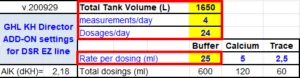
- Total Tank Volume (L): Enter your net water volume (deducting rock and sand displacement).
- measurements/day: Enter how often your KH Director tests the water daily.
- Dosages/day: Enter how many times per day your dosing pumps run.
- Rate per dosing (ml): Enter the amount of EZ-Buffer you dose per single event. Note: You only need to enter the Buffer amount. The Excel file automatically calculates the required Calcium and Trace amounts to maintain the 5:1:0.5 ratio.
Step 2: Define Alk Control Parameters (Excel) #
Next, configure how the system should react to deviations.
- Target: Your desired nominal KH value.
 Raise limit / Lower limit: The maximum allowed deviation bounds.
- dose up rate %: This field allows you to optionally speed up volume corrections. A rate of 0-60% is considered safe.
Step 3: Apply the Baseline Schedule to GHL #
Before enabling automated control, you must apply the basic schedule calculated in Step 1 to your dosing pumps, if not already done.
- Open the GHL Connect App or GHL Control Center.
- Navigate to Dosing pumps and set up schedules for your Buffer, Calcium, and Trace pumps.
- Ensure the “Dosages/day” and “Rate per dosing (ml)” match the exact outputs shown in the Excel file for each respective supplement.
Step 4: Configure KH Director Control Settings (Add-on Mode) #
Now, map the calculator’s results to the automated control logic. In the Excel file, locate the section labeled “Calculated data to be use on GHL KHD menu (ml)”.
For each of the three pumps (Buffer, Calcium, Trace), repeat the following steps:
- Go to the pump’s settings in GHL Connect/GHL Control Center and navigate to Control section.
- Select Add-on Control and set “Dosage adjustments determined by” to KH value.
- When parameter deviates by this amount: Set this option to 1 °dKH.
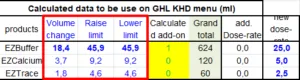
- Adjust each dose about this amount: Enter the corresponding “Volume change” value from the Excel sheet.
- Limit raise / Limit lower: Enter the corresponding “Raise limit” and “Lower limit” values from the Excel sheet.
Step 5: Long-term Fine-tuning and Verification #
If you notice that the KH Director is consistently adding or subtracting the same amount over several days, you should use the Excel tool to fine-tune your baseline dosing. This ensures the controller only has to handle minor fluctuations.
Option A: Updating your Baseline (The “New Dose-Rate”)
- Enter a recurring measurement value into the “measured” field in the Excel sheet.
- The calculator will display an “add. Dose-rate” (the difference) and a “new dose-rate”.
- If the deviation is constant, update your dosing pump’s baseline Rate per dosing (from Step 3) to this new dose-rate. This resets the KH Director adjustment closer to zero, giving the controller more room to react to future changes.
Option B: Monitoring Total Daily Consumption
- Look at the “Calculated adjustment per dosing” currently shown in your dosing pump settings and enter that value into the “Calculated add-on” field in the Excel sheet.
- The “Grand total” field will now show you the actual total volume (Baseline + Adjustment) being dosed over a 24-hour period. This is helpful for tracking your total chemical usage and determining if your 5:1:0.5 ratio is being maintained across all supplements over time.
Common Issues #
Cause: Missing baseline schedule
The dosing pump has no active schedule assigned. The automated control requires an active baseline schedule to modify.
Solution
Ensure that the pump is set to either “Automatic times” or “Individual times” and that the daily volume and dosages (from Step 3) have been saved before attempting to enable the control options.
Cause: Incorrect mode or mismatched input variables
The control mode in the GHL software might be set to “Adaptive” instead of “Add-on”, or the baseline measurements/dosages do not perfectly match the Excel inputs.
Solution
Verify that Add-on Control is selected in the GHL settings. Double-check that your Total Tank Volume, measurements/day, and Dosages/day in the Excel file perfectly reflect your actual GHL configuration, as the calculator’s “Volume change” output relies entirely on these variables.