

Summary #
The GHL Control Pad is an external display unit featuring a 4.3″ capacitive touchscreen for quick access to current device states and key functions without needing a phone, tablet, or PC nearby. This article covers mounting, connection, and configuration.
Applies to #
- GHL Control Pad (incl. Industrial Line / IL)
- Compatible controller:
- ProfiLux 4 Series (incl. Industrial Line / IL) (min. firmware 7.47)
- Software:
- GHL Connect (App, Webinterface, myGHL)
- GHL Control Center
Installation #
Two mounting options are available.
Wall Mounting #
Use the integrated keyholes on the back of the GHL Control Pad to hang it on two screws.
- Caution: Use screws with a maximum penetration depth of 6 mm. Longer screws can damage the electronics inside.
Flush Mounting #
For a flush installation in a cabinet door or wall cutout:
- Create a cutout of 112 mm × 72 mm (4.41″ × 2.83″).
- Before bonding, test the fit and make sure the connection cable can be routed easily to the GHL Control Pad port on the ProfiLux.
- Bond the device firmly in the cutout using the pre-installed adhesive tape.
- Tip: If the pre-installed adhesive tape does not adhere well to your surface, use a thin foamed double-sided tape instead.
- Caution: Removing the device after bonding may damage the front glass. Only bond it permanently once the position and cable routing have been finalized.
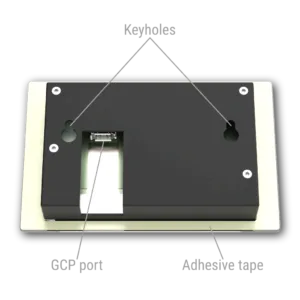 #
#
Connection #
Connect the GHL Control Pad to the GHL Control Pad port on your controller using the supplied Firewire cable. On the controller, this port is labeled GCP or CCP — both designations refer to the same port.
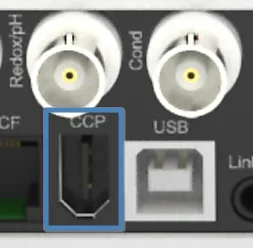
GCP / CCP port on the ProfiLux 4
The GHL Control Pad is powered directly by the controller and starts automatically once connected. No separate setup is required — the device is recognized immediately.
Configuration #
Settings are available under GHL Control Pad. In GHL Connect, settings are split into two tabs: General and Design. In GHL Control Center, all settings are on a single page.
General #
- Sound: Enable or disable sound When touching the screen and During alarm.
- Display illumination:
- Bright: Screen brightness during the day, in %.
- Dark: Screen brightness during the night, in %.
- Dark start time / Dark end time (labeled From / To in GHL Control Center): The time range during which the Dark brightness applies.
- Viewable elements: The elements displayed on the GHL Control Pad are the same as those configured for the ProfiLux display. Configure them under Display settings.
- Change after: The time in seconds before the GHL Control Pad automatically rotates to the next page, if more elements are selected than fit on a single page.
- Sensor graph range: Sets the displayed minimum and maximum value range for each sensor’s graph. In GHL Control Center, this is shown directly as a table. In GHL Connect, tap View and edit sensor graph range to open the table in a modal.
- Sensor: Lists all available sensors.
- Minimum / Maximum: The lower and upper bounds of the graph display range, for this sensor.
- Serial number: Displays the serial number of the GHL Control Pad (read-only).
Design #
- Current theme: Choose between Dark, Bright, or Custom.
- Image as background: Enable to use a custom background image. In GHL Control Center, click Load background image to upload an image. Image upload is not yet supported in GHL Connect.
- Custom theme colors: Set individual colors for Font, Tile background, Chart graph, Inactive elements, Background top, and Background bottom.