

Summary #
ProfiLux Expansion Cards extend the ProfiLux 3, ProfiLux 4, and Expansion Box 2 with additional sensor inputs, 1-10V interfaces, S-ports, and other functionality. They are automatically detected by the controller after installation. Some cards have configurable settings accessible via GHL Connect or GHL Control Center.
Applies to #
- ProfiLux 4 Series (incl. Industrial Line / IL)
- ProfiLux 3 Series
- ProfiLux Expansion Box 2
Installation #
Expansion cards must always be installed and removed with the device powered off. It is recommended to disconnect all cables beforehand, as the device needs to be opened and turned during the process. Never insert or remove cards using force — all cards are designed to fit into the slots without resistance.
For safety warnings and expansion card compatibility details, refer to the manual for your device (see Downloads).
ProfiLux 3 #
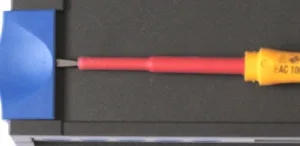
- Remove the 8 covering caps (4 on the top, 4 on the bottom of the housing). Each cap has a small hole on its side — insert a flat screwdriver into the hole to release it.
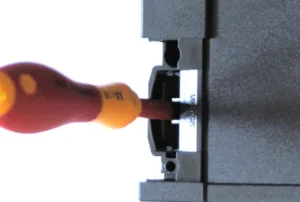
- Release the 4 housing lugs by pushing a round object (approx. 5 mm diameter) from the top into each locking point. Releasing all 4 (or at least 2 per side) simultaneously makes this easier.
- Carefully and slowly lift the upper housing cover. The front panel remains in the bottom part of the housing.
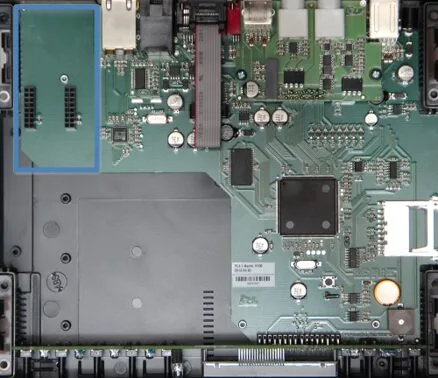
ProfiLux 3 expansion slots
ProfiLux 4 and Expansion Box 2 #
The opening procedure is the same for both devices. You will need a 2.5 mm Allen key for the housing screws.
- Turn the device upside down and loosen the 4 Allen screws in the corners of the bottom plate. Remove the screws.
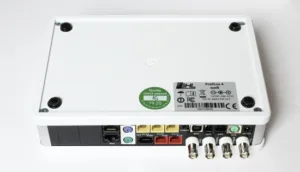
- While the device is still upside down, grip both the bottom plate and the housing cover together at the left and right edges and hold them firmly with slight pressure. Turn the device right-side up in this grip, then set it down. Carefully lift the housing cover.
Important: The housing lid contains thin cables connecting to the GHL logo light. Lift the cover slowly and avoid pulling or straining these cables. There is no need to disconnect them.
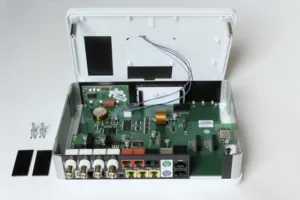
- The side panels, front panel, and module cover plates on the rear panel are now loose.
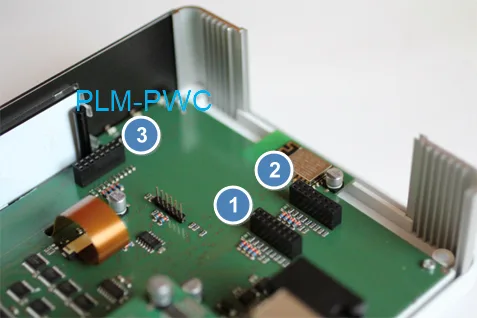
ProfiLux 4 expansion slots
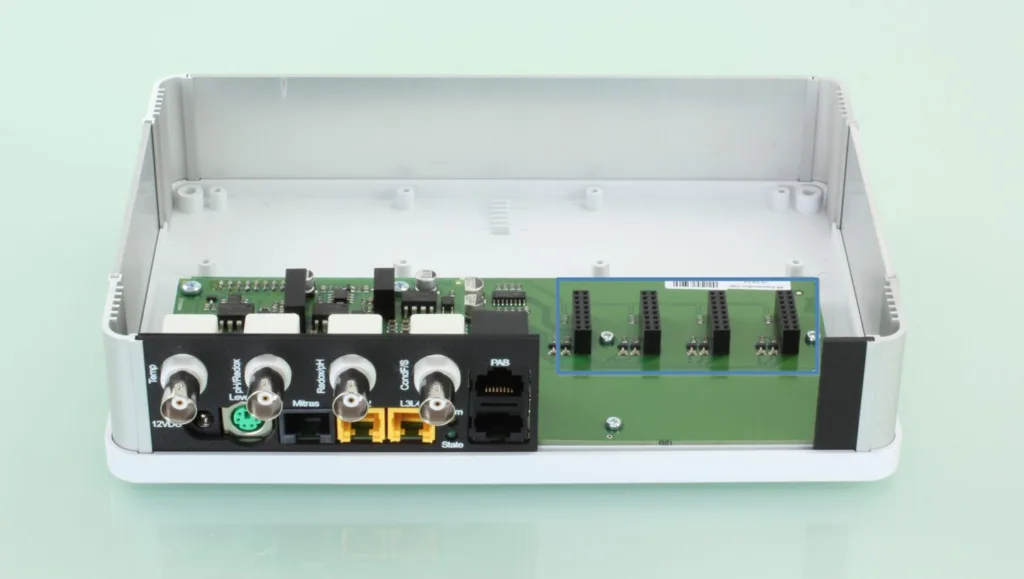
Expansion Box 2 expansion slots
Inserting an Expansion Card #
Remove the module cover plate from the desired slot. Before inserting the card, hold it so that it is oriented straight and aligned squarely with the slot — the full row of contact pins must line up exactly with the socket. Press the card in gently and evenly along its entire width at the same time. All contact pins must seat fully and evenly in the socket. If any part of the pin row is offset or still visible outside the socket, the card is not seated correctly — remove it and check the alignment before trying again. The front face of the card must sit flush with the rear panel of the housing, in line with the other installed cards or cover plates.
Dedicated PLM-PWC Slot (ProfiLux 4 only): The PLM-PWC wireless interface card installs in the internal slot — the third slot, which has no opening in the rear panel. Since the card has no external connectors, no cover plate needs to be removed. When installing, ensure the front plate of the card sits exactly flush with the edge of the board. If it protrudes slightly, the pins are likely not fully seated — remove the card, realign it, and press it in again evenly.
Closing the Housing #
ProfiLux 3: Carefully reattach the upper housing cover, ensuring the front panel and rear plate slide correctly into their slots. Reattach the 8 covering caps.
ProfiLux 4 and Expansion Box 2: Carefully reattach the housing cover, ensuring the front panel, side panels, and all module plates and cover plates slide into the grooves of the lid. Flip the device over with gentle pressure and drive the screws back in.
Once the housing is closed, reconnect all cables and power on the device.
Configuration #
Some expansion cards offer configurable settings; available options vary by card type. After installing a card, access its configuration as follows.
In GHL Control Center, navigate to System and expand the ProfiLux branch in the tree (expanded by default). Installed expansion cards are listed underneath. Select a card and click Configuration to open its settings.
In GHL Connect, navigate to System and tap Show and configure installed expansion cards. The list shows all detected expansion cards; those with configurable settings show a gear icon — tap it to open the configuration.
Notes #
- Expansion cards in the Expansion Box cannot be configured via software. They do not appear in the expansion card list. If you need to configure a card that will be installed in the Expansion Box, first install it in a ProfiLux slot, configure it there, then remove it and install it in the Expansion Box. The configuration is saved on the card itself and is retained after the move.