

Summary #
This article explains how to connect GHL devices to your network using:
- GHL Connect (recommended)
- GHL Control Center (manual setup)
After setup, the device can be accessed via:
- IP address (local connection)
- myGHL Cloud
Applies to #
- ProfiLux 4 Series (incl. Industrial Line / IL)
- ProfiLux Mini / Light (WiFi only)
- GHL Doser 2.2 / Maxi / 2.2 Maxi Standalone (incl. Industrial Line / IL)
- GHL Doser 3 / 3 Maxi Series Standalone (incl. Industrial Line / IL)
- Mitras LX7 Series (incl. Industrial Line / IL)
- Mitras LX8 Series
- Software:
- GHL Connect (App)
- GHL Control Center
Before you start #
Make sure that:
- your device is powered on
- your smartphone or PC is ready to use
- if you plan to use WiFi, a 2.4 GHz network is available and you know the network name (SSID) and password
- a USB cable is available for manual setup if needed
Setup with GHL Connect (Recommended) #
For most users, the easiest way to connect a device is via the GHL Connect app.
- Install and open GHL Connect.
- Tap Add Device.
- Select your device model.
- Start the First Time Setup Wizard.
- Follow the instructions in the app.
The app will automatically:
- connect to the device via Access Point
- configure the WiFi connection
- create the device connection
No manual network configuration is required.

Manual setup with GHL Control Center #
Use this method if:
- you prefer manual configuration
- the app setup is not possible
Step 1 — Connect via USB #
- Connect the device to your PC using USB
- Install and open GHL Control Center
- Connect to the device
For detailed instructions and troubleshooting tips, see: GHL Connect & GHL Control Center – Installation & Setup.
Step 2 — Open network settings #
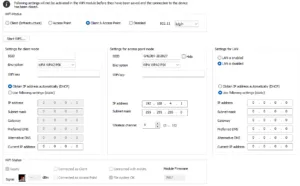
Navigate to: System → Communication → WiFi/LAN
Step 3 — Select connection type #
Choose one of the following:
WiFi:
- Set Client Mode
- Enter WiFi name (SSID)
- Enter WiFi key
Important:Only 2.4 GHz WiFi networks are supported. 5 GHz-only networks will not work.
LAN:
- Use this if the device is connected via Ethernet cable
- No WiFi configuration is required
Step 4 — Configure IP settings #
Auto IP / DHCP (Recommended)
- The router assigns an IP address automatically
- Recommended for most users
- Recommended for cloud (myGHL) usage
- Recommended for standard home networks
Static IP (Advanced)
- A fixed IP address is set manually
- Use only if you are familiar with network configuration
- Incorrect settings may prevent connection
Step 5 — Save settings #
- Click Save changes
- Disconnect the USB connection
The device will now connect to the network. This may take up to 1 minute.
Accessing the device after setup #
To register your device to a myGHL account for cloud access, see the
GHL Connect & GHL Control Center – Installation & Setup.
Access Point mode #
All devices include an Access Point (AP) mode. Used when:
- device is not connected to a network
- WiFi configuration needs to be changed
In this mode:
- device creates its own WiFi network
- app can connect and configure the device
Common Issues #
Cause
- 5 GHz network only
- Incorrect password
- Weak signal
Solution
- Ensure WiFi network is 2.4 GHz compatible
- Verify password and re-enter
- Move device closer to router or access point
Cause
- IP address unknown
- Device not on the same network
Solution
- Check router device list
- Reconnect using USB and check current IP address or reconfigure network
Cause
- TCP port 10001 is blocked by firewall or antivirus software
- The TCP port may have been changed from the default 10001 to an unsupported value
Solution
- Allow GHL Control Center in your firewall
- Ensure TCP port 10001 is open and not blocked
- Check antivirus network protection settings
- Verify that the device is configured to use the correct port