

Summary #
This guide explains how to set up Level Control and Leakage Detection for GHL devices. It covers everything from the physical connection of sensors to basic configuration and setting up specific control circuits such as Auto Top-Off (ATO), Automatic Water Change (AWC), and leakage monitoring.
Applies to #
- ProfiLux 4 Series (incl. Industrial Line / IL)
- ProfiLux 3 Series
- ProfiLux Mini / Light / Terra Series (Min. firmware 1.15)
- GHL Doser 2 / Maxi / 2.2 Maxi Series Standalone (incl. Industrial Line / IL)
- GHL Doser 3 / 3 Maxi Series Standalone (incl. Industrial Line / IL)
- Software:
- GHL Connect (App, Webinterface, myGHL)
- GHL Control Center
Before you start / What you need #
- Splitter Cable (Optional): A GHL Y-Splitter cable (PL-LY) if you want to connect two sensors to a single port.
- ProfiLux Mini & Light Adapter (If applicable): Required only for the ProfiLux Mini and Light. This adapter plugs into the controller and splits the Mitras LB port into a Mitras Lightbar port, a Level 1&2 port, a Level 3 port, and a Feeder port.
Step 1: Hardware Setup & Connection #
GHL offers various sensors (optical sensors, mechanical float switches, leakage sensors) that are connected to the “Level” ports of your device.
For ProfiLux Mini & Light users #
Before connecting sensors, you must first install the ProfiLux Mini & Light Adapter:
- Plug the adapter into the Mitras LB port on your ProfiLux Mini/Light.
- This adapter expands the single port into several connections: Mitras Lightbar, Level 1&2, Level 3, and a Feeder port for the GHL Automatic Feeder.
Connecting the Sensors #
Once the ports are ready, connect your sensors using one of the following methods:
- Direct Connection: Plug the sensor directly into a Level port (e.g., Level 1/2). If plugged into Level 1/2 without a splitter, this sensor will be addressed as Sensor index 1.
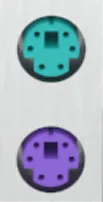
- Using a Splitter Cable (PL-LY): Each physical level port can manage up to two sensors. By using a GHL Y-splitter cable, you can connect two sensors to a single port.
Example: A splitter on Port 1/2 provides connections for Sensor index 1 and Sensor index 2. A splitter on Port 3/4 provides Sensor index 3 and Sensor index 4.
Physical Port Orientation #
On devices with stacked Level ports (such as the ProfiLux 4 or expansion cards), the bottom port always carries the lower numbering.
- ProfiLux 4: The bottom port is Level 1/2, and the port directly above it is Level 3/4.
Logical Numbering Sequence #
If your system includes expansion cards or an Expansion Box, the system assigns sensor indices (the numbers you select in the software) in the following order:
- Built-in Ports: Ports integrated directly into the ProfiLux controller (e.g., Level 1–4).
- Controller Expansion Cards: Level ports on cards installed inside the ProfiLux.
- Expansion Box (Built-in): The integrated Level port of the Expansion Box.
- Expansion Box Cards: Level ports on cards installed inside the Expansion Box.
The numbering continues sequentially. For example, if your ProfiLux 4 occupies indices 1–4, the first port on an added expansion card will start at index 5.
Step 2: Accessing the Settings #
The path to the level settings depends on the software you are using:
- In GHL Control Center (GCC): Navigate to Probe/sensor controls -> Level.
- In GHL Connect App: Navigate to Control -> Level.
Step 3: Sensor Configuration #
Before assigning tasks, configure the basic behavior of your connected sensors in the Sensors section:
- Reaction time: Determines how long a sensor must continuously report a status change before the system registers it. This prevents constant toggling caused by water surface waves (Recommended: 1–3 seconds, default: 1 second).
- Inverted: Reverses the sensor’s logical state. If your sensor reports “wet” when it is actually dry, enable this option.
- State (direct): Displays the real-time, instantaneous status of the sensor.
- State (delayed): Displays the status registered by the system after the Reaction time has passed. Use this to test your sensors.
Step 4: Control Circuit Configuration #
A “Control circuit” links your physical sensors to a logical automation task. Select an available control circuit and configure the following:
Operation Modes #
The Operation Mode dictates what the control circuit does.
Note: The fields labeled “Sensor 1” and “Sensor 2” in the settings are dropdown menus where you select the actual index number of the physical sensor you plugged in.
- Not active: The control circuit is disabled.
- Auto top off (ATO): Refills evaporated water. Example: You select your optical sensor in the “Sensor 1” dropdown. When this sensor is dry, the system activates the refill process until it is wet again.
- ATO with 2 sensors: Similar to ATO but with added safety. Water is only refilled when both sensors report a low level.
- Water change (AWC): Automates water changes by draining to a minimum level, then filling to a maximum level. Assignment: “Sensor 1” is the Maximum level (fill stop). “Sensor 2” is the Minimum level (drain stop).
- ATO & water change: Combines ATO and AWC using the same two sensors (Sensor 1 = Max, Sensor 2 = Min).
- Leakage detection: Monitors for leaks. Example: You select your leakage interface in the “Sensor 1” dropdown. If it detects water, an alarm is triggered.
- Min-max-control: Maintains the water level strictly between two separate sensors. Assignment: “Sensor 1” is the upper limit (Max), “Sensor 2” is the lower limit (Min).
- Return pump: Acts as dry-run protection. Switches off the return pump if the water drops below the assigned sensor.
Automation & Timing Settings #
- Always active: The regulation runs continuously. Typically used for ATO, Leakage detection, Min-max-control, and Return pump modes.
- Activated through timer: The regulation only runs during the specific times defined in a selected Timer. Note: This is mandatory for “Water change” or “ATO & AWC” modes so the system knows exactly when to start the AWC process.
- Maximum on-time: A critical safety feature. If the process (e.g., refilling) takes longer than this set duration, the system aborts the operation and triggers an alarm. Set to “0” to disable (not recommended for ATO).
- Reset error automatically: If enabled, the system automatically clears the alarm state once the sensors return to their normal condition.
Step 5: Monitoring Control Circuit States & Manual Action #
You can check the current status of your control circuits at any time.
- In GHL Connect: Under the Overview/States tab, you will find a list of all control circuits and their current status. Clicking a circuit takes you to its settings.
- In GHL Control Center (GCC): States are displayed in a dedicated table within the Level menu.
Possible Status Messages (States):
- Fill: The system is currently refilling water (Active state).
- Drain: The system is currently draining water (e.g., during a water change).
- Water change: A water change program is currently running.
- Alarm: An error has occurred (e.g., Leakage detected or Maximum on-time exceeded).
Manual Water Change #
If you have configured a “Water change” or “ATO & water change” circuit, you do not have to wait for the next scheduled timer:
- In GHL Connect: Tap the Start water change button located next to the respective control circuit.
- In GHL Control Center: Select the control circuit and click the Start water ch. button.
This will trigger the full drain-and-fill sequence immediately for the selected circuit.
Notes #
- Assigning Sockets/Pumps: Configuring a control circuit alone does not move water. You must assign the corresponding function (e.g., Fill water or Drain water) to a Switch Channel / Powerbar socket, or to a Dosing pump.
- Maintenance: Inspect and clean your sensors every few months to avoid sensor failure or unresponsiveness caused by debris, algae, or calcium buildup.
- Failsafe behavior: If a level sensor is disconnected or its cable breaks during operation, the ProfiLux interprets this as the target level being reached and immediately switches off the connected socket. This built-in failsafe prevents uncontrolled filling or draining in the event of a sensor failure.
Common Issues #
Cause
The system took longer to satisfy the sensor than the time permitted in the “Maximum on-time” setting. This is a safety mechanism to prevent flooding.
Solution
Verify that your refill reservoir is not empty, the tubing is not blocked, and the pump is working. Ensure the “Maximum on-time” is set high enough to allow a complete refill under normal conditions. Once resolved, manually clear the alarm using the Reset error button in the Level menu.
Cause
The logical state of the sensor is reversed compared to what the system expects for your specific setup.
Solution
Navigate to the Sensors section and toggle the Inverted checkbox for the affected sensor.
Cause
The sensor is physically stuck, covered in debris, or experiencing interference. Optical sensors can be blinded by bright light or algae, while mechanical floats can be jammed by snails or salt creep.
Solution
Remove the sensor from the water and clean it thoroughly (a mild vinegar solution works well for calcium buildup). Test the sensor manually by lifting the float or wiping the optical tip to see if the State (delayed) changes in the app.