

Summary #
Mitras Lightbars and Slimlines can be operated in two ways: standalone at full brightness, or connected to a ProfiLux controller for full dimming, scheduling, and simulation control.
Standalone operation (no controller required): Connect the power supply to the Splitter and the Lightbar or Slimline runs at 100% on all channels immediately. A simple external timer can be used to switch it on and off. No further setup is needed. For Slimlines used this way, the Mitras Slimline Splitter (non-dimmable) is sufficient — the dimmable variant is only needed when connecting to a ProfiLux.
Controlled operation (this guide): Connecting a data cable from the Splitter to the ProfiLux enables full control over each color channel independently — including brightness curves, simulations such as clouds and moon phases, and all other ProfiLux lighting features. The steps below cover the hardware connection and software configuration required for this.
Applies to #
- Mitras Lightbar 1-3
- Mitras Slimline
- Compatible controller:
- ProfiLux 4 Series (incl. Industrial Line / IL)
- ProfiLux Mini / Light (all versions)
- ProfiLux 3 Series — Mitras Lightbar 1 & 2 and Mitras Slimline only
- Software:
- GHL Connect (App, Webinterface, myGHL)
- GHL Control Center
Before you start #
- Power supply: The power supply must match or exceed the total wattage of all connected Lightbars or Slimlines. If you plan to expand later with additional Lightbars or Slimlines (which requires another Splitter, and for Lightbars over 4 also an ActiveSplitter), size the power supply for the intended final configuration.
- Splitter: Use the Mitras LB Splitter for Lightbars, or the Mitras Slimline Splitter dimmable for Slimlines (available with RJ45 or RS232 data cable, matching your controller) — the two Splitter types are not interchangeable. Each Lightbar Splitter supports up to 4 Lightbars; each Slimline Splitter dimmable supports up to 2 Slimlines plus an optional Mitras Slimline RGB.
- ActiveSplitter (more than 4 Lightbars, up to 16): A Mitras LB ActiveSplitter (available with RJ45 or RS232) and the corresponding Mitras LB cables are required to connect multiple Splitters together.
- Data cable type: The data cable between the Splitter (or ActiveSplitter) and the ProfiLux uses RJ45 on all current controllers and on the Expansion Box 2. ProfiLux 3 uses an RS232 connector instead — but only for this final connection to the ProfiLux 3 itself; connections between Splitters and an ActiveSplitter still use RJ45.
- Model compatibility: Mitras Lightbar 1 and 2 can be mixed together in the same group. Mitras Lightbar 3 cannot be mixed with Lightbar 1 or 2, and Slimlines cannot be mixed with Lightbars. If you want to run different model types simultaneously, connect each type separately — one to the ProfiLux directly and the other to an Expansion Box 2 — and configure them in the corresponding section in Step 3.
Installation & Setup #
Step 1 — Connect the hardware #
Important: Make all cable connections between Lightbars, Splitter, and power supply before connecting the power supply to mains. Connecting a live power supply while other cables are still being attached risks reverse polarity, which can permanently damage the Lightbars.
Mitras Lightbar
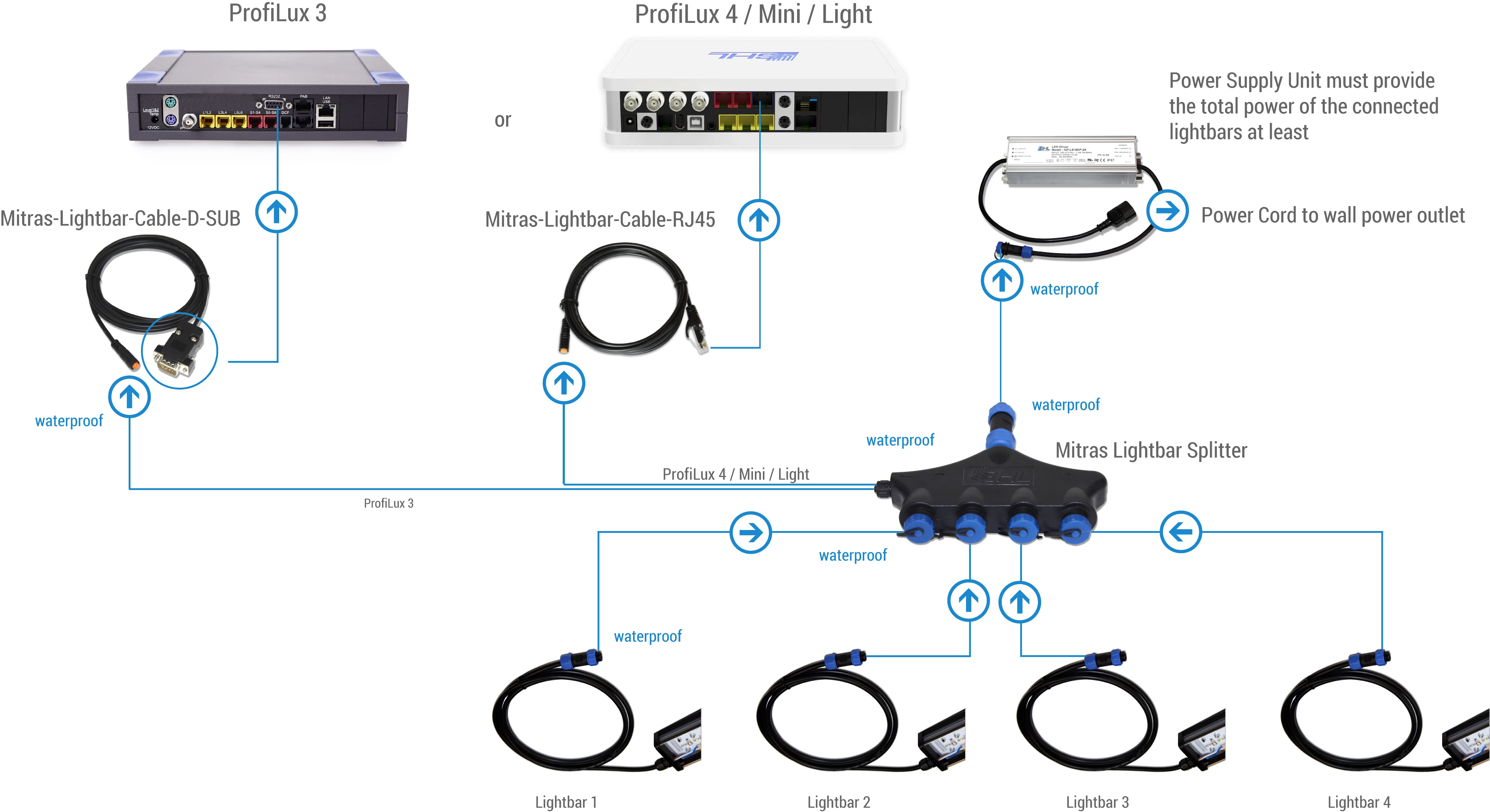
Up to 4 Lightbars via Splitter:
- Connect each Lightbar to an output on the Mitras Lightbar Splitter.
- Connect a data cable (RJ45, or RS232 for ProfiLux 3) from the Splitter to the Mitras LB port on the ProfiLux (or Expansion Box 2).
- Connect the power supply to the Splitter.
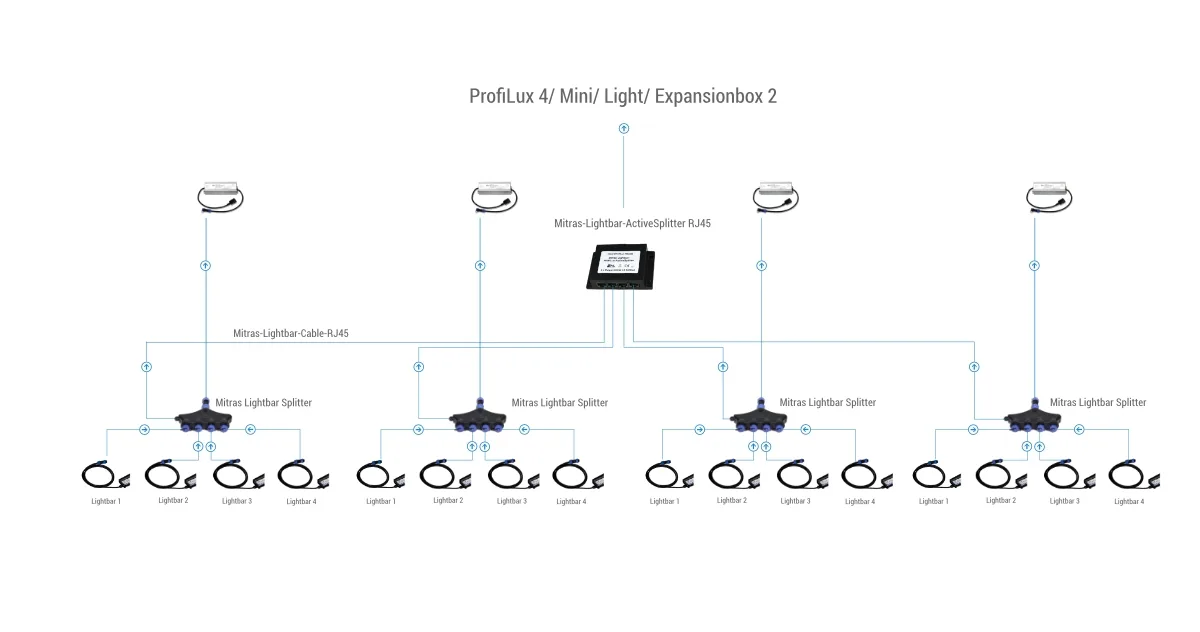
More than 4 Lightbars (up to 16) via ActiveSplitter:
- Connect each Splitter (with its Lightbars) to an output on the ActiveSplitter using RJ45 cables, and connect the power supply to each Splitter.
- Connect a data cable (RJ45, or RS232 for ProfiLux 3) from the ActiveSplitter to the Mitras LB port on the ProfiLux (or Expansion Box 2).
Mitras Slimline
Up to 2 Slimlines (plus optional Slimline RGB) via Slimline Splitter dimmable:
- Connect each Slimline to an output on the Mitras Slimline Splitter dimmable.
- Connect a data cable from the Slimline Splitter dimmable to the Mitras LB port on the ProfiLux (or Expansion Box 2) — RJ45 or RS232 depending on your Splitter variant and controller.
- Connect the power supply to the Slimline Splitter dimmable.
If connecting to an Expansion Box 2 instead of the ProfiLux directly, use the Mitras LB port on the Expansion Box — the configuration then goes in the PAB section in Step 3.
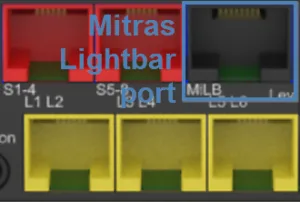
Mitras LB port on the ProfiLux 4
ProfiLux Mini / Light: If you also want to connect an automatic feeder or level sensors to the Mitras LB port, use the optional ProfiLux Mini/Light Adapter — it splits the port into labeled connectors for each device. Without it, the data cable connects directly to the port as shown above.
Mitras Lightbar connected via Splitter to ProfiLux — up to 4 Lightbars per Splitter
Mitras Lightbar connected via Splitter and ActiveSplitter to ProfiLux — up to 16 Lightbars total
Mitras Slimline connected via Slimline Splitter dimmable to ProfiLux

Step 2 — Configure the serial port (not required for ProfiLux Mini / Light) #
Before the ProfiLux can communicate with the Lightbars or Slimlines, the serial port must be set to Mitras Lightbar mode:
- GHL Control Center: Go to System → Ports, select the serial port (COM 1 on ProfiLux 4), and set the Function to Mitras Lightbar.
- GHL Connect: Go to System → Communication interfaces, select the Serial port, and set it to Mitras Lightbar.
On ProfiLux 3, a different port or an expansion card may be used — check the port overview for your specific model.
Step 3 — Configure Mitras Lightbar & Slimline #
Navigate to Illumination → Mitras Lightbar & Slimline. The page has two sections — ProfiLux for Lightbars or Slimlines connected directly to the ProfiLux, and PAB for those connected via an Expansion Box 2. In GHL Connect these appear as separate tabs; in GHL Control Center they are stacked as two blocks on one page. Open the section that matches your connection and configure the following:
- Usage: Select the connected hardware — Disabled, Mitras LB 1&2, Mitras Slimline (dim. Splitter), or Mitras LB 3.
- Max. power output: Sets an overall brightness ceiling across all channels — reducing this proportionally limits all channels.
- Assignment — LED color channels to Illumination channels: A table mapping each Lightbar or Slimline color channel to an Illumination channel. The default assignment starts at channel 1 and increments upward — make sure the assigned Illumination channels are not already in use by other lighting or devices.
Mitras Lightbar 1 & 2 — Power Balancing Factor (PBF)
For Mitras Lightbar 1 & 2, the assignment table includes an additional PBF (Power Balancing Factor) column per channel. PBF uses GHL’s Power Balancing Technology: rather than reducing total output when changing the color mix, power saved by reducing one channel is redistributed to others — so the fixture can operate at maximum total output even when individual channels are dimmed. Values above 100% boost that channel at the expense of others, while the total always stays within the power supply’s limit.
Mitras Slimline — Channel Assignment
Each Slimline has two color channels, and up to two Slimlines plus an optional Mitras Slimline RGB (three channels) can be connected per Splitter, giving a maximum of seven channels per Splitter. The Splitter itself can be switched between two channel groups — channels 1–7 (Splitter 1) and channels 9–15 (Splitter 2). The assignment table reflects this as Splitter 1 – Channel 1 through Splitter 1 – Channel 7 and Splitter 2 – Channel 1 through Splitter 2 – Channel 7.
Next steps #
The assigned Illumination channels are now ready for scheduling. A good starting point is the Illumination Wizard in GHL Connect or Light Composer in GHL Control Center — both offer ready-made templates for Lightbar and Slimline models that pre-fill the light sources and a standard curve, so you don’t have to set up the color channel assignments from scratch. For full details on building and adjusting a schedule, see:
Notes #
- Without a data cable connection to the ProfiLux, or before Step 2–3 is complete, all Lightbar and Slimline LEDs run at 100% — this is expected behavior, not a fault.
- The data cable must be connected to the dedicated Mitras LB port on the ProfiLux — not the PAB port. Using the wrong port can damage the ProfiLux or the Lightbars, and will cause the Lightbars to remain at 100% even though the ProfiLux appears to be controlling them.
Mitras LB port on the ProfiLux 4
Common Issues #
Cause
One of several configuration steps may be incomplete or incorrect: the serial port was not set to Mitras Lightbar (Step 2), Usage is set to Disabled in Step 3, the wrong section is configured (ProfiLux instead of PAB or vice versa), or the data cable is plugged into the PAB port instead of the Mitras LB port.
Solution
Work through the steps in order: confirm the serial port function (Step 2), verify Usage is not set to Disabled, check that the section matches your physical connection (ProfiLux vs PAB), and confirm the data cable is in the Mitras LB port.
Cause
The power supply is insufficient or overloaded for the number of connected Lightbars, or the power supply itself is defective.
Solution
Check that the power supply wattage covers all connected Lightbars and is correctly connected to the Splitter. If the red flashing persists, connect the Lightbar directly to the power supply without the Splitter to determine whether the Splitter or the Lightbar itself is causing the problem. If nothing resolves the issue, the power supply may be defective and should be replaced or inspected.
Cause
A defective Lightbar on a regular Splitter causes all other Lightbars on the same Splitter to stop functioning as well.
Solution
Test each Lightbar individually by connecting it alone to the Splitter to check whether it functions correctly on its own. This way you can identify which unit is causing the group to fail.