

Summary #
Lighting in ProfiLux is built around Illumination channels, each with its own daily brightness or switching curve. Three tools let you create and edit these curves: the Illumination Wizard and Light Composer are the best starting points for initial setup, while Multichannel Setup is generally the most convenient choice for fine-tuning an existing curve afterward. All three ultimately read and write the same underlying Illumination channels — some channel settings, such as which simulations affect a channel, are currently only configurable directly on the channel itself. Variable Illumination offers a different kind of flexibility: instead of editing a curve, it lets a light source rotate between several existing channels depending on the day of the week.
Applies to #
- Mitras Lightbar 1-3
- Mitras Slimline
- Mitras LX8 Series
- Mitras LX7 Series (incl. Industrial Line / IL)
- Mitras LX6 Series
- Compatible controller:
- ProfiLux 4 Series (incl. Industrial Line / IL)
- ProfiLux 3 Series
- ProfiLux Mini / Light (all versions)
- Software:
- GHL Connect (App, Webinterface, myGHL)
- GHL Control Center
Before you start #
- Light source connected: Your Mitras Lightbar, Mitras LX, or 1-10V/switchable lighting must already be physically connected and recognized by the controller. See Mitras Lightbar & Slimline – Setup Guide, Mitras LX6 & LX7 – Setup Guide, or 1-10V Lighting Control – Setup Guide if this hasn’t been done yet.
- Fixed channel mapping for Mitras LX via PWC: When a Mitras LX is PWC controlled by ProfiLux, its color channels are mapped to Illumination channels automatically and cannot be reassigned.
Illumination Channels #
Every Illumination channel stores a 24-hour curve of up to 24 points, plus a set of related settings. The Illumination Wizard, Light Composer, and Multichannel Setup all write their results back to these channels, so understanding a channel’s own settings helps even if you normally build your curves with one of those tools.
Managing a Channel #
In GHL Control Center, every channel is listed individually under Illumination → Illumination X (e.g. Illumination 1, Illumination 2, …); in GHL Connect, channels are grouped under Illumination → Illumination channels, with each one selectable from that list. Either way, opening a channel takes you to its settings page, where you build its curve point by point.
- Add a point: + button (GHL Control Center) or Add button (GHL Connect) opens the editor for a new point.
- Edit a point: Double-click it or select it and use the pencil icon (GHL Control Center), or tap the gear icon next to it (GHL Connect).
- Delete a point: Select it and use the trash icon (GHL Control Center), or open it for editing and choose Delete (GHL Connect).
- Shift the whole curve: Use the arrow button (GHL Control Center) or the Shift button (GHL Connect), then enter a time offset (hh:mm) and choose earlier or later to move every point by the same amount — useful for nudging an entire schedule without re-entering each point individually.
- Copy the curve from another channel: Copies another channel’s curve onto this one, overwriting whatever curve was set here — none of that source channel’s other settings come along, only its curve. In GHL Control Center, enable the checkbox and enter the source channel number under Copy illumination run; in GHL Connect, pick the source channel from the Copy illumination run of illumination channel dropdown.
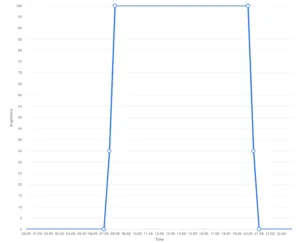
Each point has a Time and Brightness value for dimmable channels, or a Start and End time for non-dimmable channels.
 #
#
Channel Settings #
Beyond the curve itself, each channel has its own settings — the following are only available here, not in Multichannel Setup or Light Composer:
- Simulations: Checkboxes (GHL Control Center) or toggles (GHL Connect) to let this channel respond to Rainy days, Clouds, Thunderstorm, Moonphase, and Seasonal lighting. See our article on Lighting Simulations for what each of these does.
- Temp.-dep. light reduction: Gradually reduces (or, for non-dimmable channels, switches off) this channel once a chosen temperature is exceeded. See our article on Acclimation & Temperature-Dependent Light Reduction for the configurable parameters.
- Dimmable: Switches the channel between dimmable operation (brightness curve) and non-dimmable operation (on/off switching).
- Operation hour meter: Displays the channel’s accumulated operating hours. Can be reset or manually set.
- Burning-in – Duration [h]: Used to safely break in fluorescent tubes before dimming. While the channel’s operating hours are below this duration, it only outputs 0% or 100% — any dim-setting from 1% upward is output as 100%.
- Timeshift – During clouds (seconds): Delays this channel’s response to the cloud simulation, for example to simulate a single cloud moving across several fixtures one after another.
- Timeshift – At illumination run (hh:mm:ss): Shifts this channel’s curve in time, mainly to compensate for communication delay between the controller and the light.
- Light source: Selects the LED light source fitted to this channel from a fixed list of supported sources. The spectrum is shown directly in GHL Control Center, or via the eye icon in GHL Connect.
- Power: The output of the selected light source, entered in lm/W or mW/W.
- Color: Sets the display color used for this channel in the curve view and in Multichannel Setup, to tell channels apart at a glance.
The curve itself is also shown graphically — directly on the same page in GHL Control Center, or on a separate Chart tab in GHL Connect — and can be edited there too, by dragging a point to a new position or by clicking/tapping it to open the point editor.
Variable Illumination #
Instead of assigning a single Illumination channel to a light source, Variable Illumination lets you assign a different channel for each day of the week — useful when you want the lighting to follow a different pattern depending on the day. Open it via Illumination → Variable illumination.
- GHL Control Center: A table lists each Variable Illumination entry as a row, with one column per weekday (Monday through Sunday). For each entry and day, pick which Illumination channel should be active.
- GHL Connect: Tapping a Variable Illumination entry from the list opens one dropdown per weekday (Monday through Sunday), each set to the Illumination channel that should be active that day.
Illumination Wizard (GHL Connect) #
Under Illumination → Illumination Wizard, a guided setup walks you through choosing a lighting type (Mitras Lightbar/Slimline, a mix of several Lightbars, Mitras LX (IL), or 1-10V light), the specific model and length, and assigning color channels to Illumination channels — fixed automatically for Mitras LX.
A “Let’s test your lights” step lets you toggle individual channels to confirm live that the correct LEDs respond, with the option to go back and adjust the assignment. Confirming the final step transmits and saves the configuration, including light sources and a standard curve for templated fixtures.
Light Composer (GHL Control Center) #
Light Composer combines spectrum visualization with curve editing, and is the most comprehensive tool for building multi-channel LED schedules. Open it via Illumination → Light Composer.
Starting a Project #
- Load standard project: Available for Mitras LX standalone units only; loads that unit’s factory-default project.
- Load own project: Opens a previously saved project of your own.
- Empty project: Starts with no light sources or curve, so you build everything from scratch.
- Template: Loads a ready-made template with a pre-built curve, for example for a specific Lightbar or Mitras LX model. Lightbar templates (also Slimline, Dupla Marin, and Dennerle lamps) then ask for the lamp length, to determine its output.
- Wizard for several Mitras Lightbars: Lets you select multiple Lightbar models and lengths in the next step. This creates the corresponding light sources and their combined output, but no curve yet.
Light Sources #
Light sources can be added or edited here; templates come pre-filled. Add a new one with the + icon, open an existing one for editing via double-click or the pencil icon, and remove one with the trash icon. Up/down arrows reorder the list for your own overview only — the order has no effect on any setting.
Adding or editing a light source lets you pick from the supported list, view its spectrum, enter its output in Lumen (Luminous flux) or Watt (Radiant power), and assign it to an Illumination channel. The light source and its output are written to that channel once the project is saved or applied.
Illumination Run #
This is where you build the curve for the whole project across all assigned light sources, using the same point-based editing as a single Illumination channel: add a point with the + icon, edit one via double-click or the pencil icon, remove one with the trash icon, and shift the whole curve by a time offset using the arrow button. A graph shows the average brightness as a single curve, filled with the resulting color temperature, for an at-a-glance overview of the day. The table above it lists the same points in detail: Time, Color (color temperature in K), Brightness (the overall brightness at that point — explained below), and one column per light source showing its percentage output at that time.
Editing a Point #
- Time: The time of this point in the curve.
- Live checkbox: Outputs the point’s current settings live to the lights for immediate preview.
- Estimated light color of this mixture: Displays the resulting color temperature in K, with a matching colored background.
- Brightness (field and slider): Scales the entire mixture proportionally without changing the ratio between channels — the spectrum shape stays the same while the overall intensity changes.
- Spectrum graph: Displays the resulting spectrum, along with total output in lm and Watt.
- Master slider: Adjusts all channels at once, keeping their relative proportions.
- Color temperature slider: Automatically mixes the channels to match a chosen target color temperature.
- Per-channel sliders: Set the individual brightness or percentage contribution of each light source to the mixture.
- Reference spectra: Overlays reference curves on the spectrum graph, such as Chlorophyll A, B, and C, and Violaxanthin, plus an “Under water” option with a depth in meters.
- Match all selected reference spectra: Adjusts the available channels to approximate the combined mixture of the selected reference spectra as closely as possible.
- Predefined Colors: Lets you save your own mixtures as reusable presets. Save with the right-arrow button, apply a saved preset with the left-arrow button, delete with the trash icon, and rename with the pencil icon.
Testing #
Enable the Test illumination run checkbox and use the time slider to preview the curve at any point in the day, output live to the connected lights — useful for checking how a mixture actually looks before committing to it. This requires the curve to have been transmitted to the Illumination channels at least once already.
Transmitting #
Transmit illumination run to illumination channels writes the curve and light sources to the channels and saves them, overwriting whatever was configured there before — this also sets the affected channels to dimmable.
Multichannel Setup #
Once a curve has been created via the Illumination Wizard or Light Composer, Multichannel Setup (Illumination → Multichannel Setup) is generally the most convenient way to fine-tune it afterward. It builds or adjusts a curve across up to 16 dimmable channels at once, using the same point-based editing and 24-point maximum as a single channel: add a point with the + icon (GHL Control Center) or Add button (GHL Connect), edit one via double-click or the pencil icon (GHL Control Center) or the gear icon (GHL Connect), remove one with the trash icon (GHL Control Center) or Edit → Delete (GHL Connect), and shift the whole curve with the arrow button (GHL Control Center) or Shift button (GHL Connect). Editing a point lists every channel in the group together — the time is shared across all of them, but brightness remains individually adjustable per channel.
- Selecting channels: Pick up to 16 dimmable channels to include in the group. Selecting a channel automatically switches it to dimmable, and any newly added channel has its points aligned to match the existing setup. In GHL Connect, this selection and the point editing are on the Settings tab.
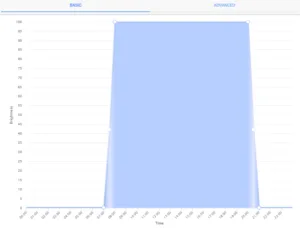
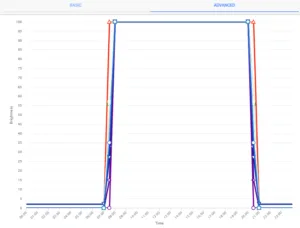
- Chart view: A graph displays the curve, with a Basic mode showing a single combined line for the average brightness across all selected channels, and an Advanced mode showing one line per channel. Both modes support editing via drag-and-drop or by clicking a point — in Basic mode, drag-and-drop only moves the time (since brightness is shared), while Advanced mode moves both time and brightness, with time changes shifting the whole group together. In GHL Connect, this is on a separate Chart tab.
- Live preview: In GHL Connect, the point-editing screen includes a Live checkbox to output the current settings directly to the lights. Not available at this level in GHL Control Center.
- Test illumination run (GHL Connect only, on the Chart tab): A time slider simulates and outputs the curve live for the selected time. Requires the curve to have been saved first.
Notes & Troubleshooting #
- Light Composer requires GHL Control Center; it is not available in the GHL Connect App, Webinterface, or myGHL.
- Changes made via the Illumination Wizard, Light Composer, or Multichannel Setup are written back to the underlying Illumination channels — all of these tools ultimately edit the same data.
- For curve modifiers such as seasonal lighting, clouds, moon phases, and storms, see our article on Lighting Simulations; for acclimation and temperature-dependent light reduction, see Acclimation & Temperature-Dependent Light Reduction — these all layer on top of the base curve configured here rather than replacing it.
- If a curve doesn’t look right after transmitting, use a Live preview or Test illumination run in the relevant tool to check it directly on the lights — this quickly tells you whether the problem is in the curve itself or elsewhere, e.g. wiring or channel assignment.
- If a channel stays at full brightness regardless of its curve, check whether its Burning-in – Duration [h] setting is still active — while the channel’s operating hours are below this value, any dim-setting from 1% upward is output as 100%.
- If changes made in Light Composer don’t show up on the lights, make sure you used Transmit illumination run to illumination channels — Light Composer edits a project independently of the channels until you do.