

Summary #
GHL Connect includes several features beyond device configuration: a customizable Dashboard for at-a-glance monitoring, a Logbook for recording manual measurements and events, and a Webcam integration for live camera views. This article covers the setup and use of each of these features.
Applies to #
- ProfiLux 4 Series (incl. Industrial Line / IL)
- ProfiLux 3 Series
- ProfiLux Mini / Light (WiFi versions only)
- GHL Doser 2 / 3 Standalone (incl. Maxi / IL variants)
- Mitras LX7 Series (incl. Industrial Line / IL)
- Mitras LX8 Series
- Software:
- GHL Connect (App, Webinterface, myGHL)
Dashboard #
The Dashboard is the home page for your GHL device in GHL Connect. It displays the information you choose in a freely configurable tile layout, and provides quick access to certain actions without navigating to their respective menus.
Editing the Dashboard #
Tap the brush icon at the top right to enter edit mode.
The following controls appear:
- + — add a new tile
- ✓ — save all changes
- ✗ — cancel and discard changes
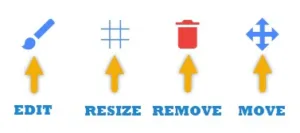
Each tile in edit mode shows its own set of icons:
- Move icon — press and hold, then drag to reposition the tile
- Trash icon — remove the tile from the Dashboard
- Grid icon — adjust the tile size
- Brush icon (available on many tile types) — configure which elements the tile displays, such as which sensors, illumination channels, or feed pauses to show
- Additional icons (tile-specific) — for example, the sensor tile shows a grouping icon to enable or disable grouping by sensor type
By default, tiles display content based on your device’s current configuration. The brush icon lets you refine which specific elements are shown — useful when you want to focus the tile on particular sensors, channels, or programs rather than showing all active entries.
To adjust the default date range shown in chart tiles and charts throughout the app, go to App settings (gear or three-dots icon) and set the preferred default period.
Logbook #
The Logbook allows you to manually record measurements, observations, and maintenance events alongside your device’s automated data. The Logbook requires an active myGHL connection — it is available in the App, Webinterface, and myGHL when you are logged in to your myGHL account and the myGHL server is reachable.
The Logbook has three tabs: Events (list of all recorded entries), Categories (create and manage your tracking categories), and Chart (visualize logbook categories alongside sensor and dosing pump recordings).
Categories #
Before adding entries, create the categories you want to track under the Categories tab. Four category types are available:
- Measurement value — for numeric parameters such as alkalinity, calcium, iodine, or any custom value
- Note — for free-text observations
- Maintenance — for recording maintenance events with a duration
- Reminder — for recurring reminders
Each category has the following settings:
- Name: For Measurement value categories, choose from a list of predefined parameters (Alkalinity, Calcium, Iodine, and others) or select Other to enter a custom name. For other types, enter a name directly.
- Color: A display color for the category in charts and lists.
- Comment: An optional description of the category.
- Reminder (all types except Note):
- Enable reminder (Measurement value and Maintenance only — Reminder categories are always active)
- Date: Day and time of the reminder
- Repeat: Enable for recurring reminders
- Repeat every (if Repeat is active): Enter a number and select Days, Weeks, Months, or Years
Measurement value categories have two additional settings:
- Unit: Choose from dKH, meq/L, ppm, or Other (enter a custom unit)
- Decimal places: Set the number of decimal places for values. This cannot be changed after the category is saved. A preview of the range and display format is shown.
Events #
Under the Events tab, all recorded entries are listed. Tap Add to create a new entry. Select a category and fill in the fields — which fields appear depends on the category type:
- Measurement value: Value, Comment, Date and time
- Note: Title, State (None / Good / Bad), Comment, Date and time
- Maintenance: Title, Maintenance duration (in minutes), Comment, Date and time
Use Select items and date range to filter the events list by category or time period.
Chart #
The Chart tab shows logbook data as a graph. Set the From and To dates, and select which categories to display. In addition to logbook categories, sensor recordings and dosing pump recordings can be added to the chart for comparison. Tapping or clicking a data point in the chart opens it for editing.
Webcam #
GHL Connect supports integration of IP cameras and webcam streams, accessible from a dedicated Webcam page and optionally displayed as a Dashboard tile. Multiple cameras can be configured.
The Webcam overview page displays all configured cameras with a current image preview. Each camera can be opened in a modal view via the eye icon — if configured, the modal includes the camera control buttons. Webcams can be edited via the gear icon.
Adding a Webcam #
Add a new source and configure the following settings:
- Name: A name to identify this camera.
- Type: The stream format — Motion JPEG, HTML5 Video, or Image.
- URL: The stream or image address of the camera. The correct URL format can be found in your camera’s manual. You can test the URL in a browser (ideally in a private/incognito window) before entering it here.
- Authentication method:
- None — no authentication required
- URL — credentials are included directly in the URL field
- HTTP — enter Username and Password in the fields that appear
For Image type sources, two additional options are available:
- Automatically refresh image — enables periodic reloading of the still image
- Refresh cycle — the interval in seconds between image refreshes
Camera Control (PTZ) #
If your camera supports remote control commands, enable the Control toggle. A table appears where you can define control actions. Use the Add button and select an action from the dropdown:
Move up · Move right · Move down · Move left · Zoom in · Zoom out · Preset 1–4 · PTZ speed (slow, medium, fast) · Snapshot
For each added action, enter the corresponding HTTP command your camera expects. Each entry can be tested with the Test button or removed with the trash icon.
Remote Access #
When accessing GHL Connect via myGHL from outside your local network, camera streams must also be reachable externally. Two options:
- Port forwarding: Configure your router to forward the camera’s port to its local IP address.
- VPN: A VPN solution provides full local network access remotely without exposing individual ports.
Note that accessing an unencrypted HTTP camera stream through the HTTPS-based myGHL web interface may be blocked by the browser due to mixed content restrictions. In this case, use the GHL Connect App instead of the browser, or access via a VPN.
Other Features #
- CloudStorage: GHL Connect can save your Dashboard layou and other app settings to your myGHL account, keeping your configuration consistent across the App, Webinterface, and myGHL on all your devices. CloudStorage requires a myGHL login and can be enabled in App settings under Save app-settings to the cloud.
- For push notifications, see the Notifications – Configuration Guide.