

Summary #
This guide explains how to connect and configure the Versia system, which consists of the Versia Controller, Versia Stream (wave pump), and Versia Flow (return pump). Because all Versia pumps require the Versia Controller to operate, their setup is combined here. Creating flow schedules and wave patterns is handled in the separate Pump Groups – Configuration Guide.
Applies to #
- Versia Controller
- Versia Stream
- Versia Flow
- Compatible controller:
- ProfiLux 4 Series (incl. Industrial Line / IL)
- ProfiLux 3 Series
- Software:
- GHL Connect (App, Webinterface, myGHL)
- GHL Control Center
Before you start #
- Versia Controller: Mandatory for operating any Versia pump. One controller supports up to 2 pumps (Versia Stream and/or Flow in any combination).
- Without a ProfiLux: Without configured fallback parameters, the Versia Controller runs connected pumps at a constant 50% speed. Full scheduling and control requires a ProfiLux 3 or 4.
Installation & Setup #
Step 1 — Hardware connection #
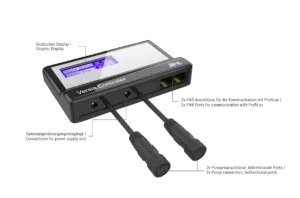
Connect all physical components before proceeding to the software configuration. The controller has two pump ports with corresponding power ports (Pump 1 + Power 1, Pump 2 + Power 2) and two PAB ports.
Versia Stream:
- Mount the pump in your aquarium. The magnetic mount holds securely on glass or acrylic up to 20mm (0.75″) thick.
- Plug the pump cable into a pump port and tighten the ring nut to lock it.
- Connect the pump’s power supply to the corresponding power port, which is located directly to the left of the pump port.
Versia Flow:
- Connect the T-fitting to a pump port and tighten the ring nut. The T-fitting has one male and one female connector — the pump cable connects to the male end, and the power supply to the female end. The connectors are different types and cannot be confused.
- The corresponding power port on the controller remains unused.
- Important: The barrel connectors on the extension cable and pump are not waterproof and must never be submerged or placed in a splash area.
PAB and power:
- Use a PAB cable to connect the Versia Controller to an available PAB port on your ProfiLux, or to another existing PAB device in your daisy-chain. PAB devices must be connected in a line — do not connect the last device back to the ProfiLux to form a ring. The Versia Controller is powered via PAB and does not require a separate power supply.
Step 2 — PAB assignment #
Before the ProfiLux can control the pumps, it must recognize the Versia Controller on the PAB network through the following assignment process:
- In GHL Control Center: Go to the System page and click Assign devices.
- In GHL Connect: Go to the System page, select Assign and configure connected PAB devices, and then click Assign devices.
- Check the box next to the newly found Versia Controller and save the assignment.
Once powered on, the Versia Controller automatically detects the connected pump models. The controller’s display shows the pump model, current status, and motor temperature for each connected pump, along with a bar indicating the current flow intensity.
Step 3 — Versia Controller configuration #
Once assigned, open the Versia Controller’s configuration page. In GHL Control Center, go to System, select the assigned Versia Controller, and click Configuration. In GHL Connect, go to System → Assign and configure connected PAB devices and tap the gear icon next to the Versia Controller.
Pump channel assignment
Set the starting pump channel number for the connected pumps. The numbering is sequential: assigning a start channel of 1 means pump port 1 = Pump Channel 1 and pump port 2 = Pump Channel 2.
Note: These are flow/return pump channels, not dosing pump channels. Ensure the assigned channel numbers do not conflict with other pumps already configured in your system.
Fallback parameters
These settings define how the pumps behave if communication with the ProfiLux is interrupted (e.g. PAB cable disconnected or ProfiLux powered off). Configure the following for each connected pump:
- Min. pump speed (%): The lowest speed the pump will run at during a communication loss.
- Max. pump speed (%): The highest speed the pump will run at.
- Wave duration (s): If min. and max. speeds differ, the pump alternates between them. This value sets the duration of each pulse in seconds.
Next steps #
Your Versia pumps are now connected and assigned to pump channels. To create flow patterns, wave schedules, or configure constant-speed operation, continue with the Pump Groups configuration:
Notes #
- Standalone operation: If the Versia Controller loses communication with the ProfiLux, or no ProfiLux is connected at all, it runs the configured fallback program. The default fallback (before any parameters are set) is a constant 50% speed — this changes as soon as fallback parameters are saved in Step 3.
- Pump model in Pump Groups: In both GHL Control Center and GHL Connect, the Versia pump model is shown in parentheses next to the pump channel number in the Pump Groups menu.
- Status and temperature monitoring: The Pump Groups dashboard tile in GHL Connect shows the current status and motor temperature of each connected Versia pump. The Versia Controller display shows the same information locally.
- Pump protection: Both Versia Stream and Versia Flow include built-in protection against rotor blockage, dry-running, and overtemperature. If a protection event occurs, the status is shown on the Versia Controller display and in the GHL Connect dashboard tile. No alarm is triggered on the ProfiLux.
Common Issues #
Cause
The PAB cable is not properly connected, or the Versia Controller is not receiving power through the PAB chain (e.g., because an upstream PAB device is powered off).
Solution
Check that the PAB cable is securely connected at both ends and that power is present throughout the PAB chain up to the Versia Controller. Then repeat the PAB assignment process.
Cause
The pump channel configured on the Versia Controller does not match the channel number used in Pump Groups, or the pump has not yet been added to a Pump Group.
Solution
Verify the pump channel start number in the Versia Controller configuration and ensure the same channel numbers are used when assigning pumps in the Pump Groups menu. See: Pump Groups – Configuration Guide.
Cause
The Versia Controller has detected a rotor blockage, dry-running, or overtemperature condition on one of the connected pumps.
Solution
Check the current status on the Versia Controller display or the Pump Groups dashboard tile in GHL Connect to identify the affected pump and fault type. Power off the pump by disconnecting it from the Versia Controller. Ensure the pump is fully submerged and free of obstructions. Clean the impeller and rotor if necessary, then reconnect and restart.