

Summary #
Flow sensors measure the flow rate of water moving through a line, in liters or gallons per hour. They can trigger an alarm on unusually low or high flow, and their reading can be used to keep a 1-10V-controlled pump’s output constant. This guide covers connecting a flow sensor and configuring its calibration, alarm, and regulation settings.
Applies to #
- ProfiLux 4 Series (incl. Industrial Line / IL)
- ProfiLux 3 Series
- Software:
- GHL Connect (App, Webinterface, myGHL)
- GHL Control Center
Before you start #
- Splitter Cable (Optional): A GHL Y-Splitter cable (PL-LY) if you want to connect two sensors to a single port.
Step 1: Hardware Setup & Connection #
Flow sensors connect to a Level port on the ProfiLux, an Expansion Box, or an Expansion Card.
Connecting the Sensor #
Connect the sensor using one of the following methods:
- Direct Connection: Plug the sensor directly into a Level port (e.g., Level 1/2). If plugged into Level 1/2 without a splitter, this sensor will be addressed as Sensor index 1.
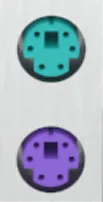
- Using a Splitter Cable (PL-LY): Each physical level port can manage up to two sensors. By using a GHL Y-splitter cable, you can connect two sensors to a single port.
Example: A splitter on Port 1/2 provides connections for Sensor index 1 and Sensor index 2. A splitter on Port 3/4 provides Sensor index 3 and Sensor index 4.
Physical Port Orientation #
On devices with stacked Level ports (such as the ProfiLux 4 or expansion cards), the bottom port always carries the lower numbering.
- ProfiLux 4: The bottom port is Level 1/2, and the port directly above it is Level 3/4.
Logical Numbering Sequence #
If your system includes expansion cards or an Expansion Box, the system assigns sensor indices (the numbers you select in the software) in the following order:
- Built-in Ports: Ports integrated directly into the ProfiLux controller (e.g., Level 1–4).
- Controller Expansion Cards: Level ports on cards installed inside the ProfiLux.
- Expansion Box (Built-in): The integrated Level port of the Expansion Box.
- Expansion Box Cards: Level ports on cards installed inside the Expansion Box.
The numbering continues sequentially. For example, if your ProfiLux 4 occupies indices 1–4, the first port on an added expansion card will start at index 5.
Step 2: Accessing the Settings #
- GHL Control Center: Go to Probe/sensor controls -> Flow-sensors.
- GHL Connect App: Go to Control -> Flow-sensors.
All connected flow sensors are listed together on one page, with fields for Index, Actual Flow, Alarm Threshold, Nominal Value, Calibration, Connected at Level-Sensor, Description, and Unit.
Step 3: Configuration #
- Nominal Value: The target flow rate the controller regulates toward when using 1-10V-based flow control.
- Connected at Level-Sensor: Selects the Level sensor index this flow sensor is physically connected to.
Calibration #
The Calibration field holds the sensor’s calibration value in ml/pulse, used to convert pulses into a flow rate. For the standard calibration, use the calculator.
- GHL Control Center: Select the sensor’s row in the table, then click Determine calibration.
- GHL Connect App: Tap the calculator icon under Calibration in the sensor’s entry.
This opens a dialog to calculate the calibration value:
- Flow-Sensor Model: 2000, 5000, or 9000 l/h.
- Flow-Sensor is Operated in a Bypass: Enable if the sensor only measures a portion of the total flow.
- Flow Through the Bypass in % (if the bypass option is active): The percentage of the total flow passing through the sensor.
- Determined Calibration Value (read-only): The calculated result, applied to the Calibration field once confirmed.
Alarm #
The Alarm Threshold triggers an alarm if the flow drops below this value; set it to 0 to disable the alarm. In GHL Control Center it’s editable directly in the table. In the App, it’s set together with further options via a dedicated dialog:
- GHL Control Center: Select the sensor’s row, then click Alarm deactivation.
- GHL Connect App: Tap the gear icon under Alarm in the sensor’s entry.
This opens a dialog with:
- Alarm Threshold (App only — already editable directly in the table in GHL Control Center).
- Deactivate During Maintenance: Selects which of the four maintenance programs suppress this alarm.
- Deactivate During Feed Pause: Selects which of the four feed pauses suppress this alarm.
Notes #
- A flow sensor’s reading can be used to keep a pump’s flow constant via a 1-10V interface — see 1-10V Pump Control – Setup Guide.