

Summary #
The ProfiLux Aquatic Bus (PAB) is GHL’s bus system for connecting peripheral devices to a ProfiLux or Doser Standalone controller. PAB-compatible devices — including Powerbars, PowerHubs, Expansion Boxes, KH Director, ION Director, SMS Module, and EXT Dosers — communicate with the controller over standard RJ45 cables in a daisy-chain topology. This article covers how to connect PAB devices correctly and how to assign and configure them in the software.
Applies to #
- PAB devices
- Compatible controller:
- ProfiLux 4 Series (incl. IL)
- ProfiLux 3 Series
- GHL Doser 2 / 3 Standalone (incl. Maxi / IL variants)
- Software:
- GHL Connect (App, Webinterface, myGHL)
- GHL Control Center
PAB Connection #
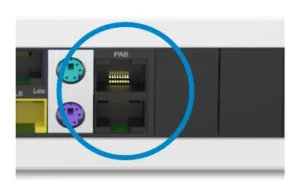
PAB devices connect using PAB cables in a daisy-chain: a cable runs from one of the controller’s PAB ports to the first device, then from that device’s second PAB port to the next, and so on. Every device except the last passes the connection through to the next — the last device in the chain always has one PAB port left unconnected.
- No ring connections: Never connect the last device back to the controller or to any other device already in the chain. A ring causes communication failures.
- Two PAB ports on the controller: The ProfiLux has two PAB ports, each of which can serve as the start of its own independent daisy-chain. Devices on each chain must still be connected sequentially — each device connects to at most two PAB cables (one incoming, one outgoing).
- Adding devices while running: Devices can be added to the chain while the controller is running. Connect to a free PAB port, power on, and then run Assign Devices in the software. Removing a device while running triggers a PABCOM alarm until the connection is restored or Assign Devices is run again with the updated chain.

Configuration #
Assigning Devices #
After connecting PAB devices physically, they must be assigned in the software. Assignment tells the controller which devices to expect and makes their resources — sockets, sensor inputs, interfaces — available for configuration. This must be repeated whenever a device is added to or removed from the chain. Changes to expansion cards inside an Expansion Box also require running Assign Devices again — see the Expansion Box – Setup Guide for details.
- Before assigning: All PAB cables must be connected and all devices must be powered on. Allow approximately 5 seconds after powering on a new device before starting the assignment.
- Always select all devices: Every time Assign Devices runs, all intended devices must be selected — including those already assigned. Devices not selected will be removed from the assignment.
Navigate to System and locate the ProfiLux Aquatic Bus (PAB) section. In GHL Connect, tap Assign and configure connected PAB-devices to open the device list; in GHL Control Center, expand the PAB node in the tree view. Either view shows all currently assigned devices with their name, serial number, and firmware version.
Click or tap Assign devices. The system scans the bus and shows all detected devices. Select all devices to assign to this controller and confirm. In GHL Connect, the software reconnects automatically and returns to the updated device list. In GHL Control Center, the connection is dropped after confirming — reconnect manually to continue.
Configuring PAB Devices #
Some PAB devices have configurable settings accessible directly from the PAB device list — in GHL Connect via the gear icon next to the device, in GHL Control Center by selecting the device under the PAB node and clicking Configuration. This includes devices such as Powerbars, Expansion Boxes, and EXT Dosers. See the respective setup guides for configuration details.
Other PAB devices — such as KH Director and ION Director — have their own dedicated menu sections in the software and are configured there rather than through the PAB device list. See the respective setup guides for those devices.
PAB System Reset #
A PAB system reset removes all device assignments and PAB-related configuration from the controller’s memory. Use this when rebuilding the PAB setup from scratch or when persistent communication problems cannot be resolved by reassigning devices. After a reset, all devices must be assigned again. In GHL Connect, navigate to System → Assign and configure connected PAB-devices and tap System reset; in GHL Control Center, navigate to System → ProfiLux Aquatic Bus (PAB) and click System reset.
Notes #
- Multiple ProfiLux 4 controllers on one PAB (PAB Group): When two or more ProfiLux 4 controllers share a PAB chain, each must be assigned a unique group number. Without distinct group numbers, having multiple controllers on the same chain — even if they are not assigned to the same devices — can cause communication problems or unpredictable behavior. Set the group number under System → ProfiLux Aquatic Bus (PAB) → PAB group in GHL Connect (dropdown), or the Group field in GHL Control Center. After changing the group number, all previously assigned devices must be reassigned. For setups with a single ProfiLux 4, the default value of 1 is correct and does not need to be changed.
- GHL Doser Standalone: PAB on Doser SA is limited to the following compatible devices: KH Director, ION Director, and EXT Dosers.
Common Issues #
Cause
A PAB cable is not properly connected or is damaged, a device has no power supply, or a newly powered device has not yet fully started up.
Solution
Check that all PAB cables are securely connected and undamaged, and that all devices are powered on. Allow approximately 5 seconds after powering on a device before running Assign Devices.
Cause
The controller cannot reach one or more previously assigned PAB devices, typically due to a disconnected or damaged cable or a device that has lost power.
Solution
Check all PAB cable connections and confirm that all assigned devices are powered on. If a device was intentionally removed, run Assign Devices again to update the assignment.
Cause
Two or more PAB-capable controllers are connected to the same PAB chain. Only ProfiLux 4 supports PAB group numbers, which allow multiple ProfiLux 4 units to share a chain safely. ProfiLux 3 controllers and Doser SA controllers do not support PAB groups and must not share a PAB chain with any other PAB-capable controller. A common case is connecting a Doser SA to a ProfiLux via PAB without first switching the Doser to EXT mode — in this state the Doser acts as a second master on the chain, causing conflicts.
Solution
For multiple ProfiLux 4 controllers on the same chain, assign a unique PAB group number to each — see the Notes section for configuration details. If the setup includes a ProfiLux 3 or Doser SA alongside any other PAB-capable controller, they must be on separate, independent PAB chains. When connecting a Doser SA to a ProfiLux as a PAB device, switch the Doser to EXT mode first — in EXT mode it is controlled by the ProfiLux and no longer acts as a standalone master.
Cause
When multiple PAB Powerbars or Dosers are connected, their sockets or dosing pumps are numbered starting from 1 by default on each device. This causes overlapping numbers, so multiple physical outputs respond to the same switch channel or dosing channel.
Solution
Configure the start number for each PAB Powerbar or Doser so that socket and dosing pump numbers are sequential across all devices without gaps or overlaps. This is done via the PAB device configuration — tap the gear icon next to the device in GHL Connect, or select the device under the PAB node and click Configuration in GHL Control Center. See the Powerbar & PowerHub – Setup Guide and the GHL Doser – Setup, Calibration & Schedules for details.