

Summary #
Switch channels are how the ProfiLux system controls devices via switchable outlets. Each switch channel can be assigned a function that determines when it switches on or off; the corresponding powerbar outlet or dosing pump socket then follows that state. A connected device such as a heater, UV lamp, or non-dimmable light is powered on and off as the switch channel dictates. This article explains how to configure switch channels and assign functions to them.
Applies to #
- ProfiLux 4 Series (incl. Industrial Line / IL)
- ProfiLux 3 Series
- ProfiLux Mini / Light (all versions)
- Software:
- GHL Connect (App, Webinterface, myGHL)
- GHL Control Center
Before you start #
- Outlet connected: The switchable outlet must already be physically connected before assigning it a function here. Outlets connect to the ProfiLux in two ways:
- Via the red S-ports, using a GHL digital or analog powerbar, or an S-Port & L-Port Breakout Box — refer to the Breakout Box manual for wiring details.
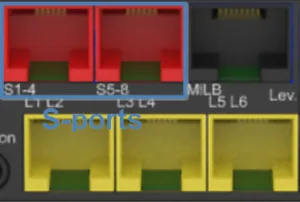
Red S-ports on the ProfiLux 4 — port count and layout vary by model and expansion.
- Via PAB, using a GHL PAB powerbar.
- Via the red S-ports, using a GHL digital or analog powerbar, or an S-Port & L-Port Breakout Box — refer to the Breakout Box manual for wiring details.
- Expansion options: The number of S-ports can be increased with a PLM-2L4S expansion card or with a Expansion Box 2.
- Channel numbering: For digital powerbars, channel numbering can be configured in the Digital Powerbars section of the overview page. For PAB powerbars, numbering is configured via the system settings like other PAB devices — see PAB – Connection & Configuration Guide. For analog powerbars and the Breakout Box, numbering is fixed — channels are numbered sequentially starting at 1, with built-in S-ports first. See Notes for the full numbering order.
Overview #
Open the switch channel overview via System → Switch channels and outlets (GHL Control Center) or Switch channels (GHL Connect). This page lists all available switch channels with their current state and a manual override option.
Switch Channel List #
In GHL Control Center, channels are shown in a table with columns for the assigned function, blackout delay, actual current draw, description, and operating hour meter. In GHL Connect, the list shows each channel with its actual current draw. In both platforms, each channel has an on/off toggle showing its current state — to manually override a channel, enable Activate manual override first; this unlocks the toggles so you can switch a channel directly. In GHL Connect, a third option Auto is available to return an overridden channel back to its normal programmed behavior. Disabling manual override or leaving the page also returns all channels to normal operation.
Digital Powerbars #
GHL digital powerbars connect to the red S-ports on the ProfiLux and support more than four switchable outlets. Analog powerbars (up to four outlets) use the S-ports directly without additional configuration.
To configure connected digital powerbars or dosing units, use the controls at the bottom of the overview page:
- GHL Control Center: Checkboxes indicate which S-port groups have a digital powerbar connected (e.g. Digital powerbar connected on S1–S4 for outputs 1–24 or S5–S8 for outputs 25–48). Click Program digital powerbar or dosing pump unit to set channel numbering or initial output states. These options are greyed out if the connected ProfiLux model does not support digital powerbars.
- GHL Connect: Tap Configure digital Powerbars/Dosing units to open the same configuration window, then use Program numbering or initial state to make changes.
Configuring a Switch Channel #
Open a channel for editing by double-clicking it or selecting it and clicking Edit (GHL Control Center), or by tapping it in the list (GHL Connect). In GHL Control Center, the operating hour meter is reset or set via the Reset or Set buttons above the table after selecting a channel.
Function #
The most important setting — it determines what controls this channel. Select a function from the dropdown and, where applicable, a parameter to link it to a specific index, circuit, or sensor.
Lighting:
- Illumination: Switches on when the assigned Illumination channel is active (brightness above 0%) and off when it reaches 0%. Used for two purposes: as the primary on/off control for non-dimmable lights, and as a supplementary mains cut for dimmable fixtures that don’t shut off internally at 0% brightness. Note: GHL dimmable Lightbars have an internal shutdown and do not need a switch channel for this purpose. Select the Illumination channel index.
- Variable illumination: Follows a Variable Illumination entry’s day-dependent schedule. Select the Variable Illumination index.
Pumps & Dosing:
- Stream pump: Switches on when the assigned pump group’s program activates. Select the pump index.
- Dosing pump: Switches on for dosing events. Select the dosing pump index.
- Magnetic stirrer: Follows the stirrer’s configured schedule. Select the stirrer index.
Level & Water:
- Fill water / Drain water / Fill water (AWC only) / Fill water (ATO only) / Water change: Follows the corresponding level control action. Select the level control circuit.
Maintenance & System:
- Maintenance: Active during the selected maintenance period. Select the maintenance index.
- Filter: Normally always on, but switches off during the selected feed pause. Select the feed pause index.
- Timer: Follows a timer’s schedule. Select the timer index.
- Programmable Logic: Follows the output of a programmable logic circuit. Select the logic index.
- Digital input: Follows the state of a digital input. Select the input index.
Alarms:
- Flow sensor alarm: Switches on when the selected flow sensor triggers an alarm. Select the sensor index.
- General alarm: Switches on when any alarm in the system is active.
Simulations:
- Thunder: Switches on briefly (approx. 800ms) with each individual lightning flash during a thunderstorm — for devices that should produce a flash effect, such as strobe lights.
- Thunderstorm: Switches on for the entire duration of a thunderstorm simulation, including the build-up and cool-down phases.
- Rainy days: Switches on on the days configured as rainy days in the Simulation settings.
KH Director:
- KH-value control upwards (increase) / KH-value control downwards (decrease): Follows the KH Director’s control output. Requires a connected KH Director.
Simple:
- Always on / Always off: Permanently on or off regardless of any other settings.
Sensors (added dynamically based on connected sensors): Each connected sensor appears in the list with its own set of sub-functions. Temperature and air temperature sensors offer Chiller, Heater, Substrate heater, PTC, and Alarm. All other sensor types offer Control upwards (increase), Control downwards (decrease), and Alarm.
Switching Behavior #
- Invert: Reverses the switch channel’s behavior — the channel is on when its function would normally switch it off, and vice versa. Useful when a device should be active in the opposite condition (e.g. a pump that should run continuously except during the selected maintenance period — assign the Maintenance function, then invert it so the channel switches off while maintenance is active, instead of on).
- Blackout delay: Keeps this channel switched off for the specified number of minutes after the ProfiLux starts up, regardless of what its assigned function would otherwise dictate. Useful for devices that must not restart immediately after a power failure — for example, a metal halide lamp that needs to cool down before it can be switched on again.
Special Functions #
- Shut off during feeding: The channel switches off during the selected feed pause periods, regardless of its assigned function. Useful for pumps or skimmers that should pause during feeding.
Notes #
- Channel numbering order: Channel numbers are assigned in a fixed order — built-in ProfiLux S-ports first, then expansion cards installed in the ProfiLux, then the built-in ports of an Expansion Box, and finally any expansion cards installed in the Expansion Box. Ensure channel numbers do not conflict with other assigned outlets.
- For complex conditions — combining multiple sensors, adding time restrictions, or switching off after a set duration — use the Programmable Logic function instead of a direct sensor assignment.