

Summary #
This guide explains how to connect a dimmable lighting fixture or LED driver to a ProfiLux L-port and assign it to an Illumination channel via the 1-10V interface. Once assigned, the channel can be used in a lighting schedule just like any other Illumination channel. For the general 1-10V interface settings and all available function options, see 1-10V Interfaces – Configuration Guide.
Applies to #
- ProfiLux 4 Series (incl. Industrial Line / IL)
- ProfiLux 3 Series
- ProfiLux Mini / Light (all versions)
- Software:
- GHL Connect (App, Webinterface, myGHL)
- GHL Control Center
Before you start #
- Control cable: A compatible control cable is required to connect the lighting fixture or driver to the ProfiLux L-port. This is usually available from the device manufacturer. If only a bare-wire or incompatible cable is available, use the S-Port & L-Port Breakout Box — refer to the Breakout Box manual for wiring details.
- Voltage range: Check the documentation for your lighting fixture or driver for the correct control voltage range. Most devices use 1–10V; check whether yours differs before setting U min. and U max. in Step 2.
- L-port capacity: Each L-port controls two independent 1-10V channels. To use both channels on a single port simultaneously, a YL2 Splitter Cable is required.
Installation & Setup #
Step 1 — Connect the fixture #
- Connect one end of the control cable to your lighting fixture, LED driver, or its control input, or to the S-Port & L-Port Breakout Box.
- Connect the other end to an available yellow L-port on the ProfiLux, expansion card, or Expansion Box.
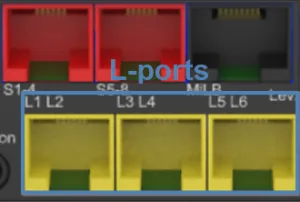
Yellow L-ports on the ProfiLux 4 — port count and layout vary by model and expansion.
- If using a YL2 Splitter Cable: plug the splitter into the L-port first, then connect the individual device cables to the splitter outputs.
Step 2 — Assign the interface in software #
Navigate to the 1-10V interface settings:
- In GHL Control Center: Go to System → 1-10V interface and select the channel corresponding to your L-port.
- In GHL Connect: Select 1-10V interfaces from the main menu and tap the relevant channel.
Configure the following:
- Function: Set to Illumination and assign an Illumination channel index. This links the interface to that channel’s lighting schedule. If you want to use Variable Illumination (different channels on different weekdays), set the function to Variable illumination and assign a Variable Illumination index instead.
- Output signal — U min. / U max.: Set the voltage range to match your device’s specifications. To verify the values, use the Live preview or Test illumination features in GHL Connect’s Multichannel Setup or Light Composer (see Lighting Schedules – Configuration Guide): test the light at a low setting and at full brightness — if it doesn’t respond at low settings, increase U min.; if it reaches maximum before 100%, reduce U max.
Save the settings. Repeat for each additional channel.
Tip: Most LED fixtures have more than one color channel. Assigning each to its own Illumination channel — for example, Royal Blue to Illumination 1 and White to Illumination 2 — gives you independent control over each color throughout the day rather than having to dim all channels together.
After saving, open the assigned Illumination channel (see Lighting Schedules) and make sure Dimmable is enabled, so the channel responds to the 1-10V signal as a dimmer rather than as a simple on/off switch.
Step 3 — Program GHL LED devices (optional) #
Some GHL LED devices connected via 1-10V — such as the LEDControl4 V2, LEDControl4 Active/Passive, ProfiLux-Simu, and Mitras-Simu-Driver — can be configured directly through the interface:
- In GHL Connect: On the 1-10V interface settings page, tap Program devices (enable Expert mode in the app settings if the button is not visible), select the connected device, and follow the on-screen steps.
- In GHL Control Center: Use the equivalent device programming option on the same interface settings page.
This only applies to these specific GHL devices — third-party fixtures connected via 1-10V are controlled only through the function assigned in Step 2 and cannot be programmed this way.
Next steps #
The assigned Illumination channel is now ready for scheduling. Continue with the Lighting Schedules article to build a brightness curve and configure simulations:
Notes #
- Channel numbering order: Channel numbers are assigned in a fixed order — built-in ProfiLux ports first, then expansion cards installed in the ProfiLux, then the built-in ports of an Expansion Box, and finally any expansion cards installed in the Expansion Box. Ensure channel numbers do not conflict with other assigned interfaces.
Common Issues #
Cause
The voltage range is set incorrectly, the control cable is not properly connected, or the assigned interface channel does not match the physical L-port used.
Solution
Check that the control cable is securely connected at both ends. Verify the U min. and U max. values match your device’s specifications. Confirm the channel number in the software matches the physical L-port the cable is plugged into.
Cause
The fixture is not receiving the 1-10V control signal — the cable may be disconnected, the wrong channel may be assigned, or the device may require an external control mode to be explicitly enabled.
Solution
Verify the cable connection and confirm the interface channel number matches the physical L-port. Check whether your lighting fixture or driver requires an external or “remote” control mode to be enabled on its own controller before it responds to 1-10V input — refer to the device manufacturer’s documentation.